I have tried (and paid for) various note-taking and writing apps like Obsidian, Ulysses, Evernote, Bear, and Craft—but ultimately I settled on Visual Studio Code (with some plug-ins) as my writing environment. In this article I’d like to explain why.
I write several thousand words per day, both for my job and for my personal projects. At work I use a Windows 10 laptop, and at home I use a MacBook and a Linux box. I want to work in all three environments—and unlike the more dedicated writing software, VS Code runs on every platform (and even in a web browser).
I have to keep the writing for my day job and my personal writing separate—but I like having access to my notes all the time no matter what computer I’m on. VS Code’s integration with Git lets me do this. More on that later.
First, I use the following plug-ins:
Markdown Preview Enhanced

This plug-in is the key to the whole writing experience in VS Code. In my opinion it provides the best Markdown preview on any platform. MPE handles every tag from just about every Markdown extension. It does linking, footnotes, tables of contents, embedded Base64 images, keycaps—and I can even include HTML for things like advanced tables.
As a developer, I use a lot of code fragments, and MPE has code blocks with syntax highlighting and line numbering. I don’t have to break up my documents or link anything in. It’s almost heartbreaking when I have to export to WordPress or Medium and watch my code get mangled (although WordPress does have code blocks and Medium uses Gists).
With a right-click MPE can export to many different file formats—including HTML, PDF, and ebooks. It even exports to plain-vanilla Markdown if you want to use your document in a less capable previewer. Speaking of which, VS Code comes with its own Markdown preview—but it’s nowhere near as full featured as MPE.
At work I write tutorials and manuals in Markdown and then share them with my colleagues as vanilla Markdown and HTML.
WordCounter
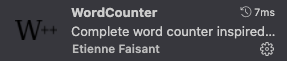
This plug-in provides the basic document statistics that every writer needs in the status bar. Here is an example of what I mean:

If I select some text then WordCounter will show me that statistics for the selection.
Code Spell Checker
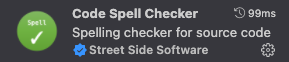
This plug-in provides basic spell checking, and it’s even aware of source code. It will underline words it doesn’t recognize in blue and I can hover my mouse over them and select "Quick Fix…" for the usual spell check operations.
Git and GitHub
Git keeps track of versions of files and can merge them together. GitHub is a common repository for documents across multiple computers and even multiple users. VS Code has support for Git and GitHub built-in. For many writers Git is total overkill, but as a developer I use it every day anyway. Once you get into the workflow of "pull, write, commit, push" Git is pretty straightforward.
What I like about using Git is that my files are always 100% under my control. They are on my local devices in formats that are 100% open and they are backed up in the cloud. If I decided that I didn’t like GitHub I could move my files to another provider like GitLab, my own Git server—or just use my files off my own local computer.
How Much Does it Cost?
GitHub is free if you want to make all of your files public, but to have a private repository costs USD $4.99 per month. This is the only part of this particular writing environment that costs money. VS Code and the plug-ins are all free (and even Open Source).
What About Mobile?
I don’t take many notes on my mobile devices—but I can bring up VS Code on my iPhone by opening https://vscode.dev in my phone’s browser and access my files from GitHub. It’s not my favourite thing, but it does work. Instead, though, I take notes using Apple’s Notes app and copy and paste them into VS Code when I’m on my MacBook. To be honest, it’s not something I do often.
Conclusion
If you went with another popular writing environment like Obsidian, you might have a few less technical details to worry about, but not that many. In Obsidian you still have to find and install plug-ins, and the Markdown preview isn’t as full-featured. Plus Obsidian costs money.
I wasn’t looking for a free writing environment; I was looking for one with the best Markdown support. I found that in the Markdown Preview Enhanced plug-in for VS Code. On top of that, VS Code runs on every platform I use—macOS, Windows, and Linux. With Git and GitHub I can access my files from the cloud on all my devices—but still retain total control over them. These are the main things I was interested in.
 Trav's Blog
Leave a comment